
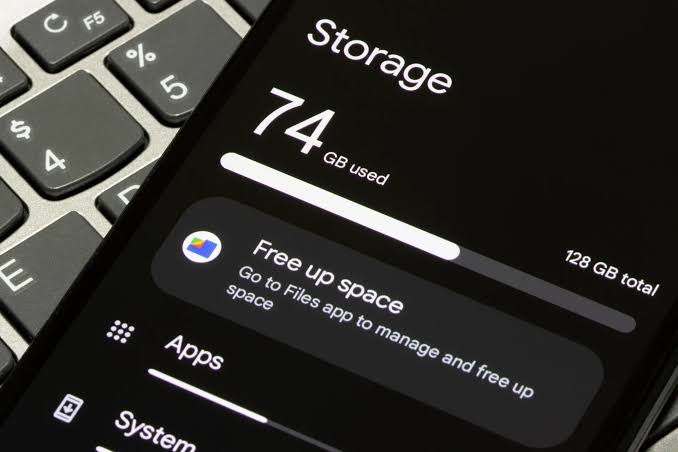
Running out of storage on your Android phone can be frustrating. You may be unable to download new applications, save photos, record videos, or install important updates. The usual solution is to uninstall apps, but that is not always necessary.
In this article
- 1. Check What Is Using Your Android Storage
- 2. Clear App Cache to Recover Space
- 3. Remove Unnecessary Downloads
- 4. Delete Unwanted WhatsApp Media
- 5. Clear Chrome Cache and Browsing Data
- 6. Remove Offline Videos, Music, and Maps
- 7. Back Up Photos Before Removing Local Copies
- 8. Use Android’s Built-In Cleanup Recommendations
- 9. Tips to Keep Your Android Storage Under Control
- Frequently Asked Questions
- Final Thoughts
There are several ways to recover storage by managing temporary files, old downloads, duplicate media, and unnecessary offline content. You can also use built-in Android tools to identify what is consuming the most space before deciding what to remove.
If you want to free up storage on Android without deleting apps, this guide explains practical methods you can follow on most Android phones, including Samsung Galaxy, Google Pixel, Xiaomi, Redmi, Motorola, and OnePlus devices. Menu names may vary depending on your phone model and Android version.
1. Check What Is Using Your Android Storage
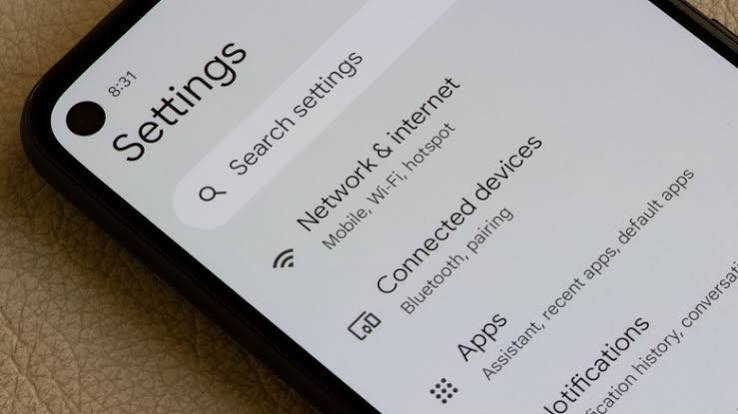
Before deleting anything, identify which files and applications are consuming the most space. This helps you avoid removing useful content unnecessarily.
Open Your Phone’s Storage Settings
- Open the Settings app on your Android phone.
- Search for Storage or open the Storage section.
- Review the categories displayed on your screen.
- Check how much space is occupied by apps, images, videos, documents, downloads, and other files.
- Select a category to investigate its contents.
Some Android phones also provide a Free up space option with suggestions for removing unnecessary files.
For example, if videos occupy most of your storage, clearing browser cache alone will not make a significant difference. Identifying the largest categories helps you choose the most effective cleanup method.
2. Clear App Cache to Recover Space
Applications create temporary files to load images, websites, and other content more quickly. These files are called cache data. Over time, some apps can accumulate considerable cached data.
Clearing an app’s cache can free storage without uninstalling the application.
How to Clear Cache on Android
- Open Settings.
- Select Apps or Applications.
- Choose an application that uses considerable storage, such as Chrome.
- Tap Storage or Storage and cache.
- Select Clear cache.
Repeat these steps for other apps where clearing the cache is useful.
Important: Choose Clear cache rather than Clear storage or Clear data. Clearing cache removes temporary files, while clearing storage can delete local app data, settings, and other information.
Cache files may gradually return as you continue using an application, so this is a maintenance method rather than a permanent solution.
3. Remove Unnecessary Downloads
Downloaded files are another common reason Android phones run low on storage. Old PDFs, installation files, documents, and videos may remain on your device long after you stop needing them.
Clean the Downloads Folder
- Open Files, My Files, or your phone’s file manager.
- Navigate to the Downloads folder.
- Sort files by size if the option is available.
- Review large files and identify anything you no longer need.
- Select unwanted files and delete them.
Pay attention to downloaded videos, duplicate documents, and old installation packages. These can take up space without providing any ongoing benefit.
Do not delete unfamiliar files simply because their names look unusual. Check their purpose first, especially if they belong to an application you regularly use.
4. Delete Unwanted WhatsApp Media
WhatsApp conversations can accumulate many photographs, videos, voice messages, and forwarded documents. Group chats are particularly likely to contain large amounts of media.
You can remove unnecessary downloads without deleting WhatsApp itself.
Manage WhatsApp Storage
- Open WhatsApp.
- Go to Settings.
- Select Storage and data.
- Tap Manage storage.
- Review large files and media from individual chats.
- Select items you no longer need and delete them.
Before removing anything, review important conversations and save valuable photographs or documents elsewhere.
You can also adjust automatic media downloads in WhatsApp settings to reduce unnecessary files accumulating in the future.
Remember that deleting a downloaded file may affect your ability to access it locally. Keep a backup of important content before cleaning up.
5. Clear Chrome Cache and Browsing Data
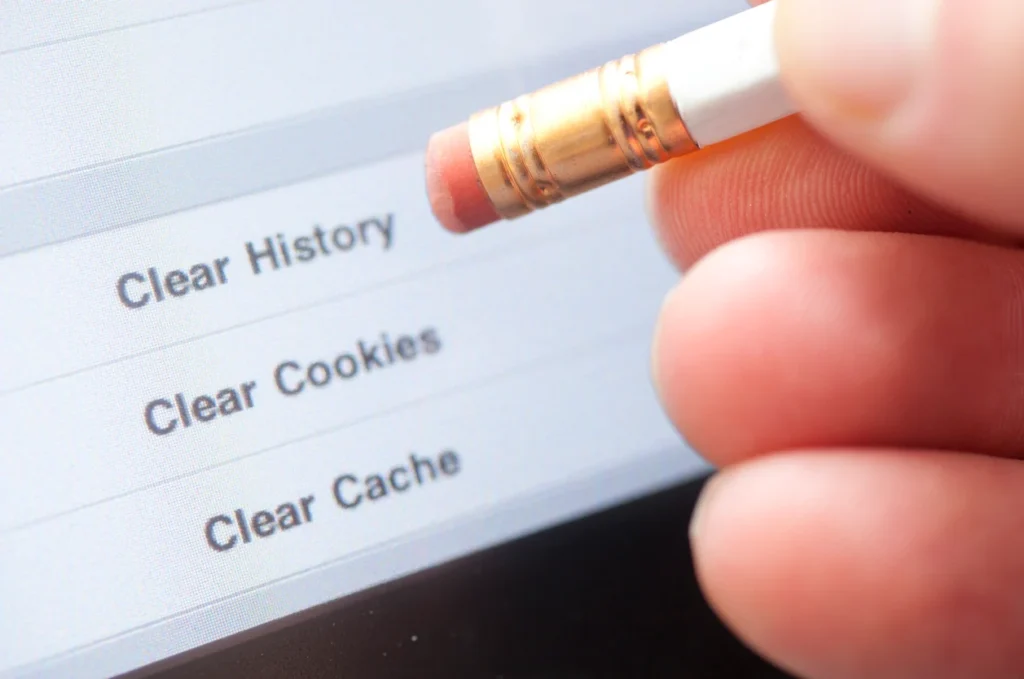
Google Chrome stores temporary website files to make pages load faster. Clearing cached images and files may recover some storage and can also help resolve certain website problems.
Steps to Clear Chrome Cache
- Open Chrome on your Android phone.
- Tap the three-dot menu.
- Select Delete browsing data.
- Choose an appropriate time range.
- Select Cached images and files.
- Review your selections and confirm.
If your goal is only to remove temporary files, avoid selecting browsing history, cookies, or other categories unless you intend to remove them.
Deleting cookies can sign you out of some websites, while clearing cached files may cause websites to load more slowly the next time you visit them.
For additional guidance, visit the official Android cache and cookies guide.
6. Remove Offline Videos, Music, and Maps
Streaming and navigation apps often let you download content for offline use. Although this feature is convenient, downloaded content can consume several gigabytes of storage.
Find and Remove Old Offline Downloads
Check applications such as:
- YouTube for downloaded videos.
- Netflix for offline movies and shows.
- Spotify for downloaded music.
- Google Maps for offline maps.
- Other apps that store content locally.
Open each relevant app and look for its Downloads, Offline, or Storage section. Remove content you no longer need.
This method is useful because you can keep the application installed while removing its downloaded content.
Be aware that some downloads are managed entirely inside their respective apps. Deleting a file from the phone’s general Downloads folder will not necessarily remove offline content stored by a streaming service.
7. Back Up Photos Before Removing Local Copies
Photos and videos can occupy a large percentage of a phone’s internal storage. If you want to preserve your memories, consider backing them up before removing local copies.
Use Google Photos
- Open Google Photos.
- Check whether backup is enabled.
- Wait until your important photos and videos have finished backing up.
- Confirm that the files are accessible through your account.
- Use the app’s Free up space feature if available.
This feature removes eligible local copies that have already been backed up. Those items can generally still be accessed through Google Photos when you are signed in and connected to the internet.
Always confirm that the backup is complete before removing local files. Cloud storage limits apply, and items that have not been backed up may be lost if deleted from your phone.
You can also copy photos to a computer or external storage device if you prefer to maintain a separate backup.
8. Use Android’s Built-In Cleanup Recommendations
Many Android devices include storage-management tools that identify large files, unused downloads, and other content that may be safe to remove after review.
Try the Free Up Space Option
- Open Settings.
- Select Storage.
- Look for Free up space or a similar option.
- Review the recommended files.
- Select only the items you are comfortable deleting.
- Confirm the cleanup.
The exact options depend on your phone and Android version.
Google also provides instructions for freeing storage through Google Play Help.
If your phone supports automatic app archiving, you may also be able to archive eligible apps you rarely use. Archiving differs from permanently uninstalling an app because its icon and personal data can be retained, although the app itself may need to be downloaded again before use.
9. Tips to Keep Your Android Storage Under Control
After you clean your device, a few simple habits can help prevent the same problem from returning.
- Review your Downloads folder regularly.
- Remove offline movies and music you have already watched or heard.
- Clear cache selectively when an app is using excessive temporary storage.
- Back up important photos and videos.
- Reduce automatic media downloads in messaging applications.
- Review storage settings before installing large games or updates.
- Avoid unfamiliar cleaner apps that request unnecessary permissions.
You do not need to clear every cache daily or install a third-party cleaning tool. Android’s built-in settings and trusted file-management apps are often sufficient for routine maintenance.
Frequently Asked Questions
1. Can I free up Android storage without uninstalling apps?
Yes. You can clear app caches, remove unwanted downloads, delete unnecessary messaging media, remove offline content, and back up eligible photos before deleting their local copies. The amount of storage recovered depends on your device and files.
2. Does clearing cache delete personal photos?
Clearing an individual app’s cache normally removes temporary files rather than your personal photographs. However, selecting the wrong option, such as Clear storage or deleting files through a gallery, can remove important data. Check the selected action carefully.
3. Why is my Android storage still full after deleting files?
Your phone may retain deleted items in a Trash or Recently Deleted folder. Other applications may also store offline downloads, cached content, or local data. Check your storage breakdown and review the relevant folders.
4. Is it safe to use Android cleaner apps?
Some file-management applications can help identify unnecessary files, but not every cleaner app is trustworthy. Prefer built-in Android tools or reputable applications from official sources. Avoid granting permissions that are not necessary for the application’s purpose.
5. How often should I clean Android storage?
There is no fixed schedule. Review storage when your phone starts running low, when downloads fail, or before installing a large update. Occasional maintenance is generally more useful than repeatedly deleting temporary files without checking what is consuming space.
Final Thoughts
A full phone does not automatically mean you need to remove your favorite applications. By checking storage usage, clearing temporary files, reviewing downloads, managing messaging media, and backing up important photos, you can often recover useful space while keeping the apps you rely on.
Start with the largest storage categories and remove only files you understand. Always protect important photos, documents, and conversations before performing a cleanup.
With a few simple habits, you can keep your Android phone organised and make room for new downloads without unnecessarily sacrificing your favourite apps.



Leave a Reply